


Browse sections
Your account area
What you find in your account dashboard at hadir.chat/app, and how to get from it to your inbox.
Your Hadir Chat account has two places: the account dashboard at hadir.chat/app, with your plan, billing, team and details, and the inbox at app.hadir.chat, with your conversations and channels. One sign-in covers both, and you move from the dashboard to the inbox without signing in again.
Open the account dashboard
- Go to hadir.chat/en/login and sign in with your email and password.
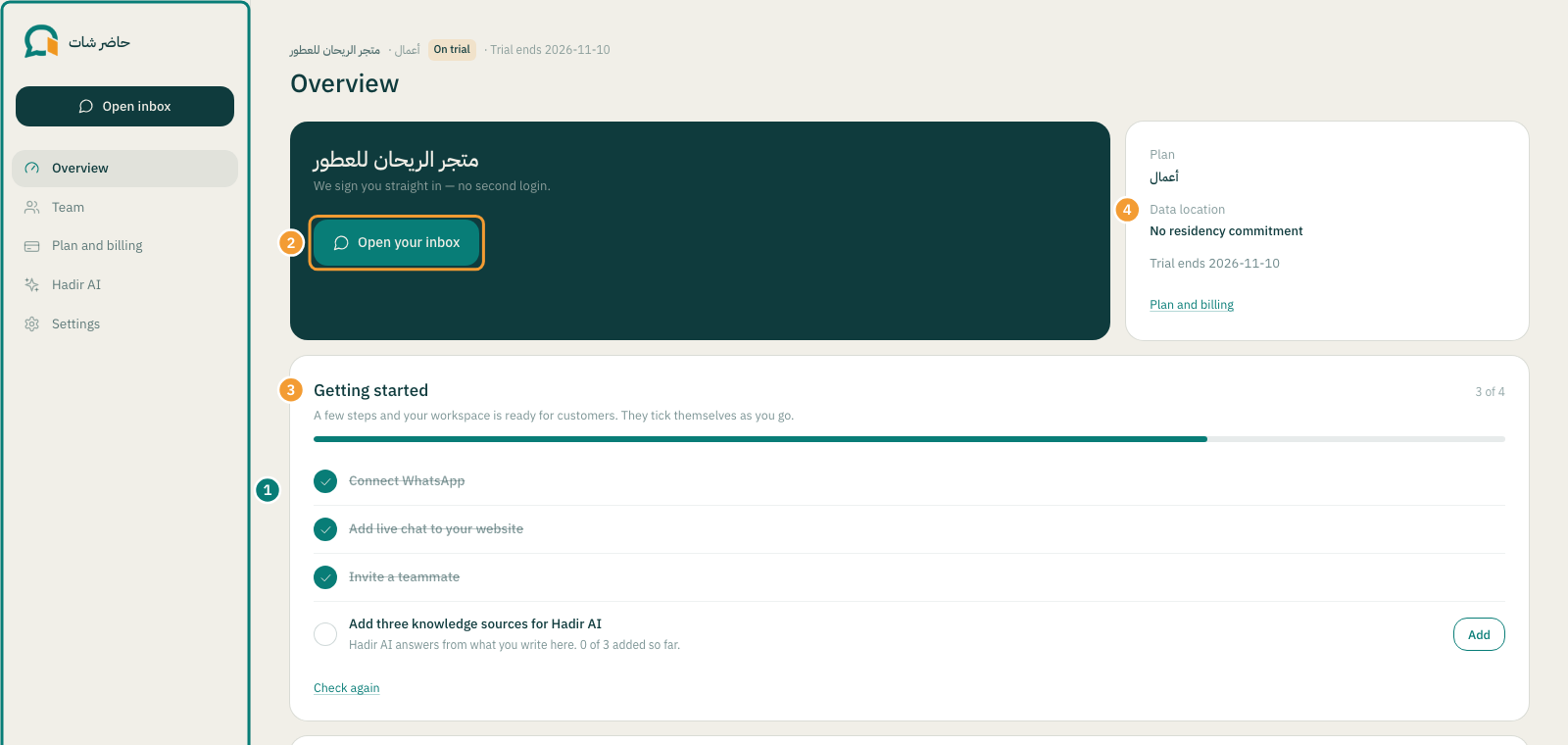
- The Overview page opens. The side menu (1) has Overview, Team, Plan and billing and Settings, plus Hadir AI if your plan includes it.
The Overview page
- Open your inbox (2): takes you straight to your conversations. The same shortcut, Open inbox, sits at the top of the side menu on every page.
- Getting started (3): connect WhatsApp, add live chat to your website, invite a teammate and more, depending on your plan. Steps tick themselves as you finish them. Select Check again if you finished one and it is not ticked yet; once all are done you can Close this list.
- Plan (4): your plan, your Data location, the end of your trial if you are on one, and a link to Plan and billing.
- Hadir AI this month: how many Hadir AI replies you used this month, if your plan includes it.
The Team page
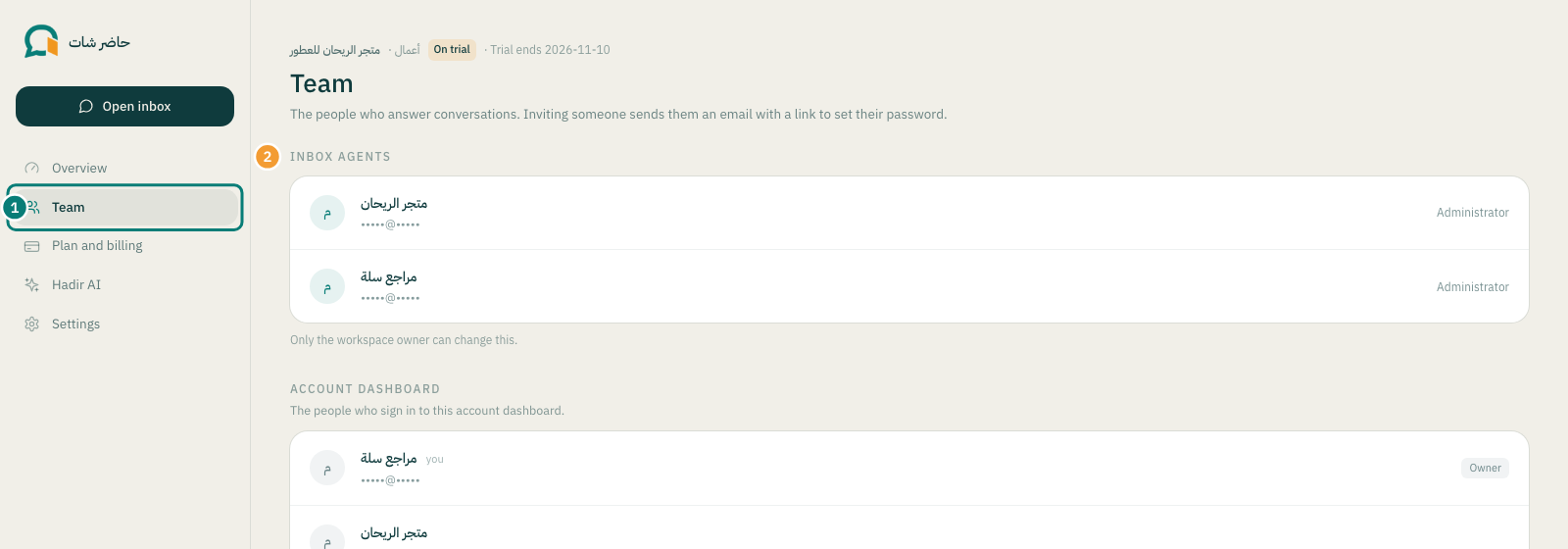
Two lists: Inbox agents (2), the people who answer conversations, and Account dashboard, the people who can sign in to this dashboard. The workspace owner can invite an agent here with Invite an agent, or remove one. Everyone else sees “Only the workspace owner can change this.”
Plan and billing
Shows Your plan, your invoices and your Hadir AI credit; this is where you start a subscription or change plans. Starting a subscription and adding credit are for the workspace owner only.
Settings
- Your details: name, email, mobile number, language and password. Changes here apply to the inbox too.
- Workspace: the workspace name shown to your team and on invoices; only the owner can change it.
- Add-ons: modules for particular sectors. Select Manage add-ons to see them.
- Devices signed in: every device signed in to your account. If you see one you do not recognise, sign it out and change your password.
- Your data: export everything in your workspace in one file, or ask for the workspace to be erased.
Note: change the dashboard's language and look at the bottom of the side menu (العربية or English; light, dark or follow the system).
Thanks for your feedback ✓
We got your note and will review the article with it in mind.