


Browse sections
Connect your Salla store
Install the Hadir app from the Salla App Store, then link the store to your workspace with a code sent to your email.
On this page
Once your Salla store is connected to Hadir Chat, your team sees a customer's orders, payment and shipping status inside the conversation itself. Connecting takes two steps: you install the Hadir app from the Salla App Store, then you confirm which workspace the store joins.
Before you start
- You are an Administrator in Hadir Chat, or your role has the permission “Connect and manage the store integrations, and which channel reads from which store”.
- You can read the store owner's email as registered with Salla; the connect code goes there.
Install the app from Salla
- In the inbox, open Settings, then Integrations.
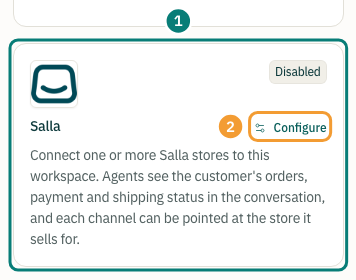
- On the Salla card (1), select Configure (2).
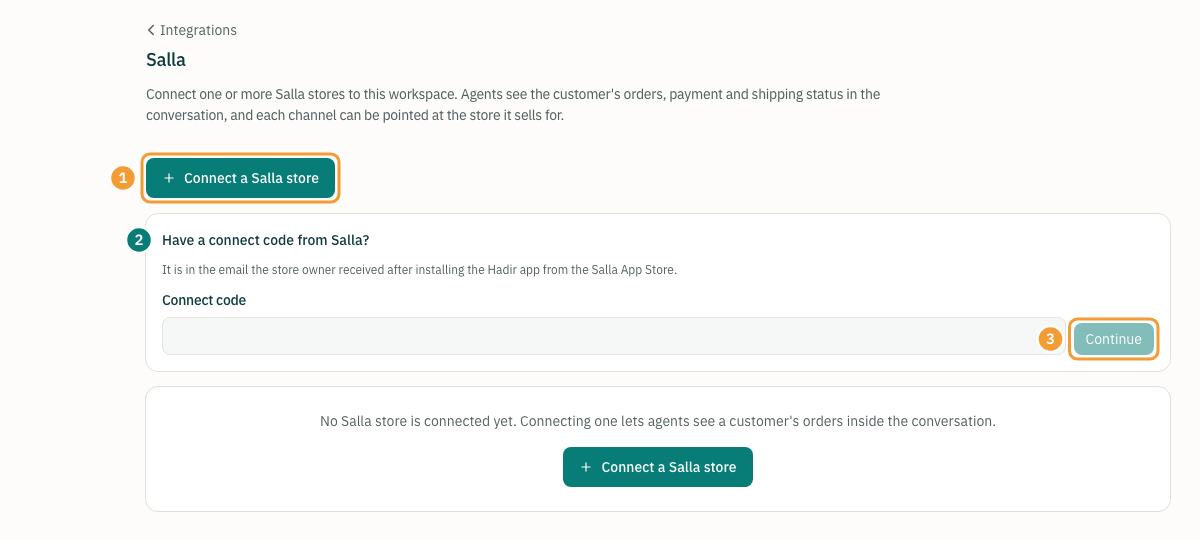
- Select Connect a Salla store (1). The Hadir app's page in the Salla App Store opens in a new tab.
- Install the app on your store from that page, and accept the permissions Salla shows.
- Once it is installed, we email the store owner a connect link and code. The email is in Arabic, as Salla merchants' are: its subject is «اربط متجر … بحاضر شات» and its button «ربط المتجر» (connect the store).
Link the store to your workspace
Use either way:
- From the email: select «ربط المتجر», and sign in to Hadir Chat if asked; you land back on the Salla page.
- With the code: on the Salla page, under Have a connect code from Salla? (2), paste the code into Connect code and select Continue (3).
Hadir Chat asks: “Connect the Salla store … to this workspace?”. Select Connect the store. You see “… is connected.” and the store appears on the page as Connected.
Note: the link and the code work once, for 7 days. If they have expired, check the latest email, or install the app again from the Salla App Store to get a new one.
If the connection is refused
- “This Salla store is already connected to another workspace. Disconnect it there first.” A store belongs to one workspace.
- “You have connected as many stores as your plan allows.” Disconnect another store or change your plan.
- “You are not allowed to connect stores in this account.” Ask an administrator to connect it or to give you the permission.
Reconnecting after the app was removed
If the Hadir app is removed from your store in Salla, orders stop arriving, we delete the store's data that came from Salla, and the Salla page shows a notice. To reconnect, install the app again from the Salla App Store; the store returns to the same workspace without a new code, as long as your plan allows the number of stores.
If you selected Disconnect in Hadir Chat instead, the next install counts as a new connection and the code email comes again.
Thanks for your feedback ✓
We got your note and will review the article with it in mind.