


Browse sections
Plans and changing plan
Start your plan after the trial, move up or down, or build a plan around what your business uses.
On this page
Your plan lives on the Plan and billing page of your account area at hadir.chat/app. From there you start your plan after the trial, move between plans, or build a plan with only the parts you need.
Before you start
- Only the workspace owner can start or change the plan: the whole Plan and billing page is the owner's, and it does not appear in the account area menu for anyone else.
- Prices and what each plan includes are on the pricing page, in the same currency as your invoice.
What the Plan and billing page shows
- Sign in to your account area and select Plan and billing in the sidebar.
- At the top you see Your plan (1) and when the period ends, Contacts in your workspace (2), which is what your plan is priced on, and Conversations this period (3), shown for information only; it is not billed.
Note: going over your plan's contacts stops nothing and is never charged. We tell you as you approach it and when you pass it. The one exception is agent seats: adding an agent past your plan's seats needs an upgrade.
Start your plan after the trial
The trial is 14 days with no card. When you are ready, or once it ends:
- Under Start your plan, choose how you are Billed: monthly, every 6 months or yearly.
- If you have a Promo code, or a Referral code (optional) from a marketer, enter it now; it comes off the first invoice. A referral code is recorded once and cannot be changed afterwards.
- Tick I agree to the terms of service.
- Select Start with this plan on the plan that suits you.
- Your first invoice appears under Invoices at the bottom of the page. Select the pay button next to it; the plan starts as soon as it is paid.
Everything you set up during the trial stays. If the trial ends before you pay, the workspace is paused and nothing is deleted; paying the first invoice reopens it.
Move to another plan
- Under Change plan, your plan carries a Current plan badge (1). Select Choose (2) on the plan you want.
- A Change to … window shows what is Charged today, the days left in this period, and when the change takes effect.
- Select Confirm change.
- An upgrade applies now; you pay only the difference for the days left.
- A downgrade applies when the current period ends, so you keep what you paid for. Nothing is refunded, and the new price applies from the next period. Until then, your plan shows that a change is waiting for the period to end.
Build your own plan
If the ready-made plans are bigger or smaller than you need, build yours group by group:
- On the Plan and billing page, select the Build your own plan card. It opens on what you have now.
- If you like, pick one of the plans next to Start from (1) as a starting point.
- Under Groups (2), tick what you need. "Conversations and team" is Always included.
- Move the sliders inside each group to set your numbers, such as contacts, agents and inboxes.
- Check Your plan and the New total (3), then select Review the change.
- The window shows what you pay today and when it takes effect. Nothing is charged until you select Confirm and apply.
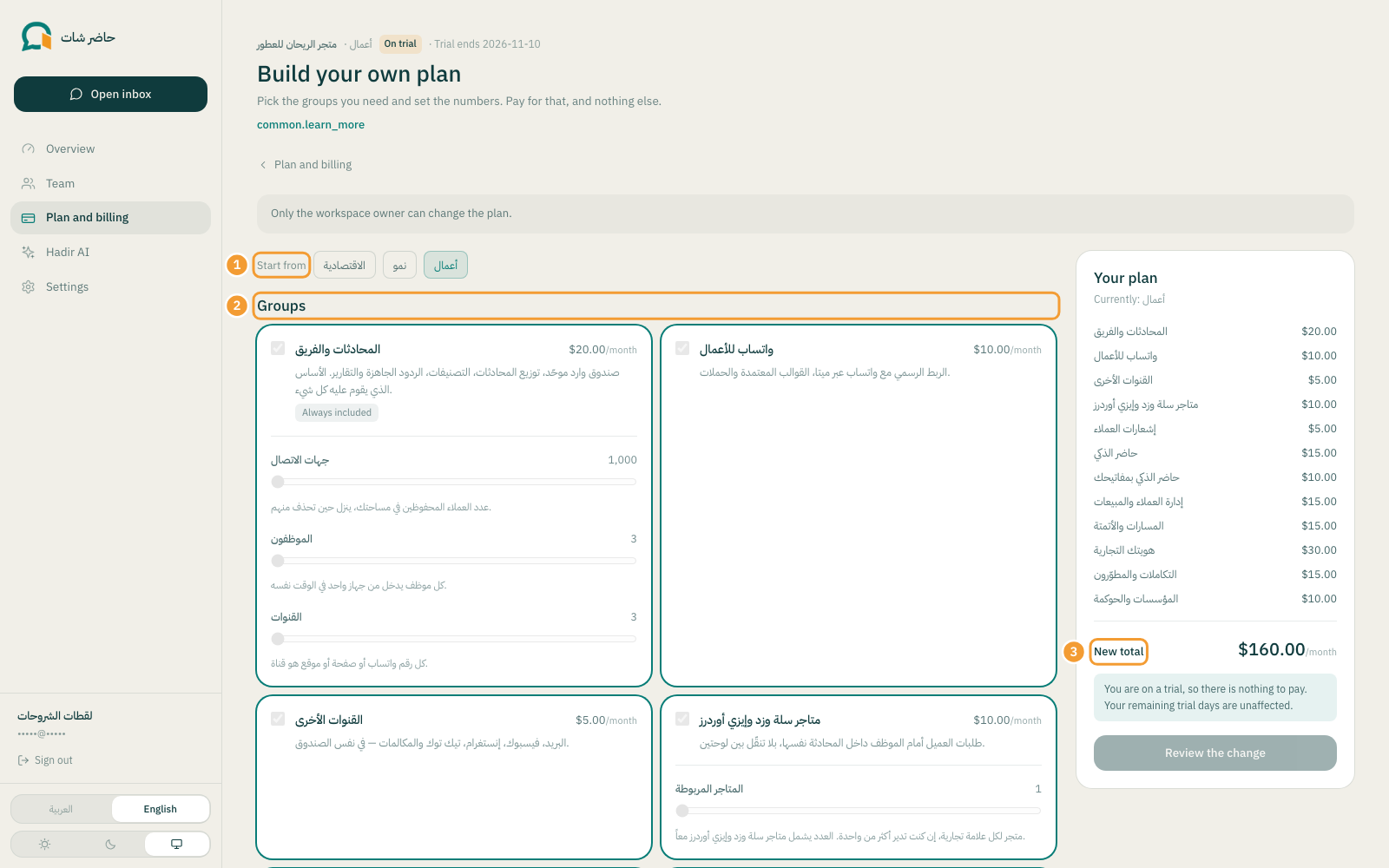
A built plan follows the same rule: more applies now, prorated for the days left; less applies when the period ends. Prices stay on your current billing period; changing period is a separate request. On a trial there is nothing to pay, and your remaining trial days are unaffected.
To add a single feature without its group, see Individual features.
Thanks for your feedback ✓
We got your note and will review the article with it in mind.