


Browse sections
Staff permissions for orders
Decide who may change, ship or cancel orders from a conversation.
On this page
Order actions write straight to your store, so agents do not get them automatically. Administrators have all of them; an agent with no custom role sees orders read-only. To let an agent run particular actions, give them a custom role.
The permissions
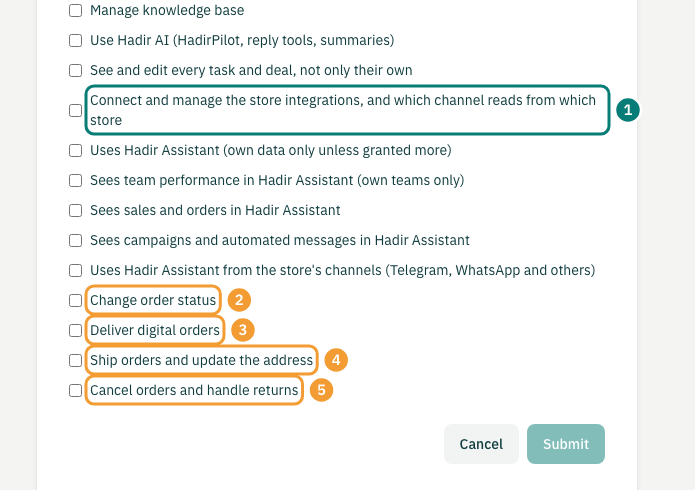
- Connect and manage the store integrations, and which channel reads from which store (1): for whoever connects stores and manages their channels, not the orders themselves.
- Change order status (2): confirm an order and change its status.
- Deliver digital orders (3): send the codes, then mark the order delivered.
- Ship orders and update the address (4): shipping and tracking, and confirming or editing the address.
- Cancel orders and handle returns (5): cancel an order, and returns or exchanges.
Any one of the four is enough for an Order note and Send order summary. Changing the status to a cancelled or returned status also needs Cancel orders and handle returns.
Create a custom role
- In the inbox, open Settings, then Custom Roles.
- Select Add custom role.
- Enter a Name and a Description, such as “Order supervisor”.
- Under Permissions, tick what this role needs. Remember the conversation permissions they need to answer customers.
- Select Submit.
Give the role to an agent
- Open Settings, then Agents, and select the edit button next to the agent's name.
- Choose the custom role you created from the Role list.
- Select Edit Agent.
The agent then sees Order actions on order cards, with only the actions their permissions allow.
Note: Custom Roles appears in Settings when your plan includes it, and order actions work when your plan includes store integrations.
Thanks for your feedback ✓
We got your note and will review the article with it in mind.