


Browse sections
Billing and VAT
The billing currency, the tax invoice after every payment, and how to pay and download your invoices.
On this page
Every invoice for your plan is on the Plan and billing page of your account area at hadir.chat/app. This article covers the currency you are invoiced in, what the tax invoice carries, and how to pay and download it.
Billing currency
Invoices are issued in US dollars (USD), the same currency the pricing page shows. VAT is added as the law requires.
What the invoice carries
A tax invoice follows every payment, valid for your books. It is in Arabic and English together, and shows:
- The heading Simplified Tax Invoice, the invoice number and the date it was issued.
- The seller's details and VAT number, and your workspace name as the buyer.
- The lines: your plan, or a Hadir AI credit top-up, with quantity and amount.
- The Subtotal, then a VAT line with its rate, then the Total.
- A Fatoora QR code, as ZATCA requires.
The name on your invoices
An invoice carries your Workspace name as it was when the invoice was issued, and invoices already issued do not change. If you want your business's registered name on them, change it before you pay:
- In your account area, select Settings.
- Under Workspace, edit the Workspace name (1). Your team sees this name in the inbox, and it appears on invoices.
- Select Save (2).
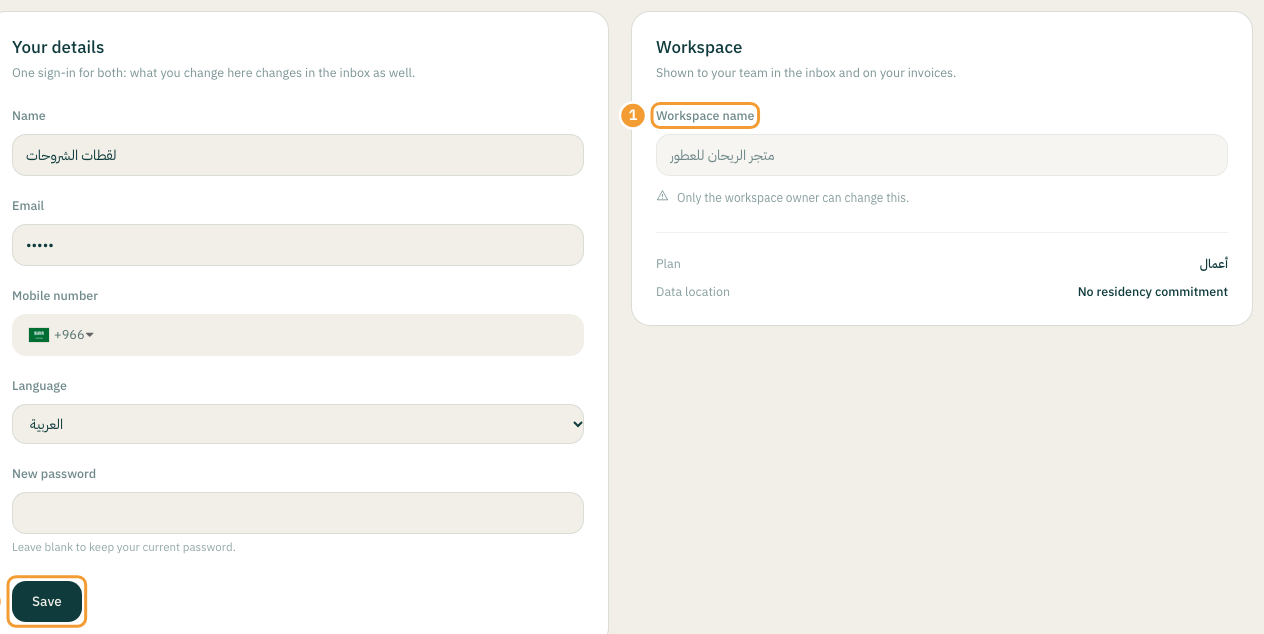
Pay and download invoices
- Select Plan and billing and scroll to Invoices.
- Each invoice shows its number, the date it was issued and its amount.
- An unpaid invoice has a Pay with … button named after the payment method (1). Select it and complete the payment on the gateway's page; you come back to the Payment result page.
- A Paid invoice (2) has a Download link (3) for the PDF.
The workspace owner gets an email when each invoice is issued, and a "Payment received" email after paying, with the tax invoice attached as a PDF.
Note: the whole Plan and billing page is for the workspace owner only: seeing and downloading invoices, paying, and asking for a refund. It does not appear in the account area menu for anyone else on the team. If you see "No payment method is available right now", contact us and we will sort it out.
If a payment is late
We send a reminder for an unpaid invoice, and the workspace stays fully available until the date it gives. After that date the workspace is paused until the invoice is paid; no conversation, contact or setting is deleted. Paying the open invoice brings everything back within a minute.
Billing period and plan changes
You can be billed monthly, every 6 months or yearly. An upgrade applies now and charges only the difference for the days left; a downgrade applies at the end of the current period, so you keep what you paid for. See Plans and changing plan for the details, and Refunds and cancelling for what is refunded and what is not.
Thanks for your feedback ✓
We got your note and will review the article with it in mind.