


Browse sections
A tour of the dashboard
Where to find conversations, menus and settings in your inbox.
On this page
The Hadir Chat inbox is where your team reads and answers customers, from every channel on one screen. Open it with Open inbox in your account on hadir.chat, or go straight to app.hadir.chat with the same email and password.
The parts of the screen
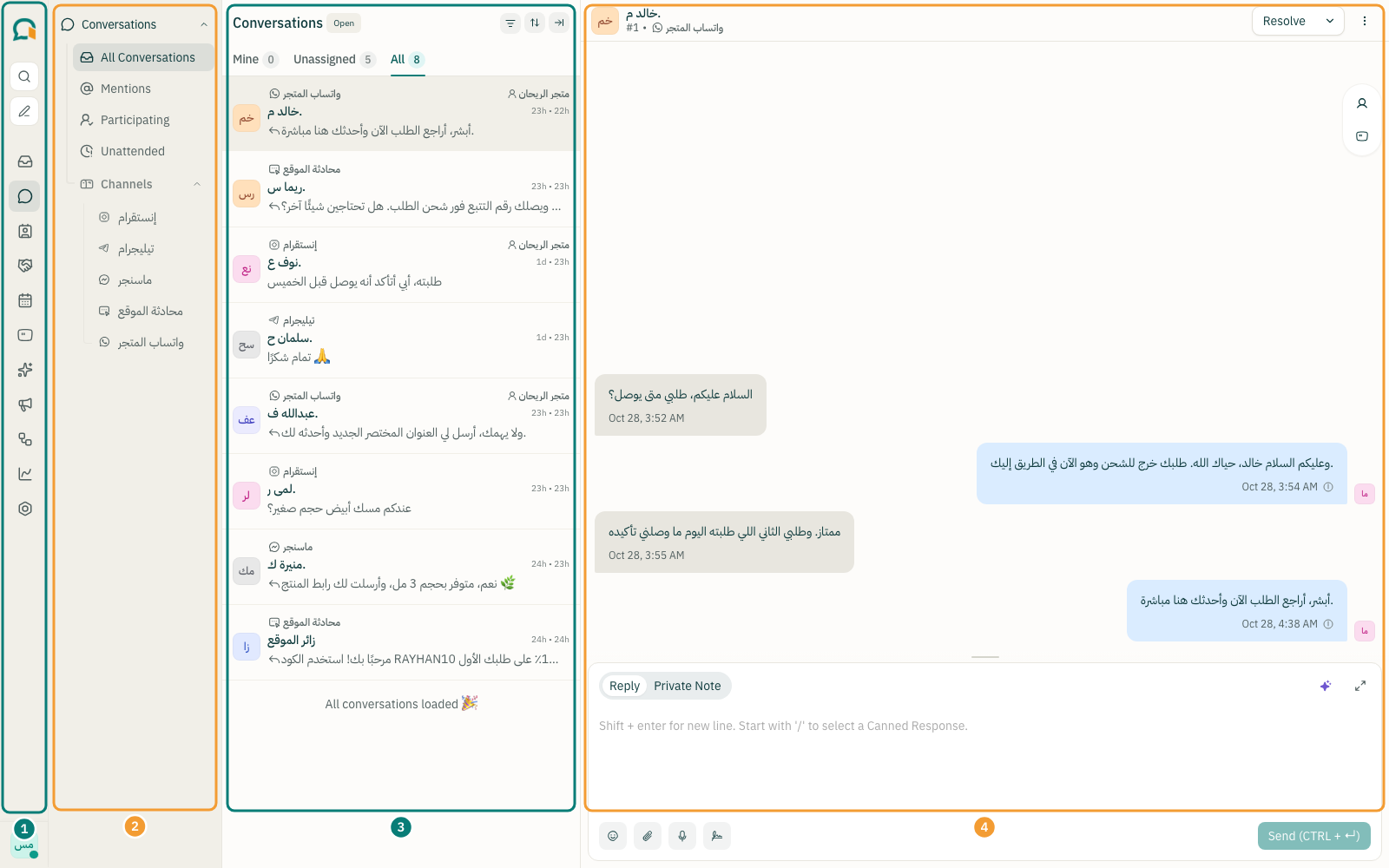
- Section bar (1): the narrow bar at the edge of the screen. Each icon opens a section, such as conversations, contacts, campaigns and reports; the last icon is Settings.
- Section menu (2): changes with the section you open. Under Conversations you find All Conversations, Mentions, Participating and Unattended, then Channels with one entry per channel you have.
- Conversation list (3): three tabs at the top. Mine is what is assigned to you, Unassigned is what nobody has taken yet, and All is everything. Each conversation shows the channel it came from.
- Open conversation (4): the messages, with the reply box below. Choose Reply to write to the customer, or Private Note for your team only.
Note: an agent sees conversations only from the channels they were added to; an administrator sees every channel. If conversations you expect are missing, ask an administrator to add you to that channel.
Settings
Select the settings icon (1) in the section bar to open the Settings menu (2). The ones you need first:
- Account Settings: the account name and language.
- Agents: add your team and set their roles.
- Inboxes: connect WhatsApp, website chat and other channels, and change each channel's settings.
- Templates: your WhatsApp message templates approved by Meta.
- Integrations: connect your Salla store and other integrations.
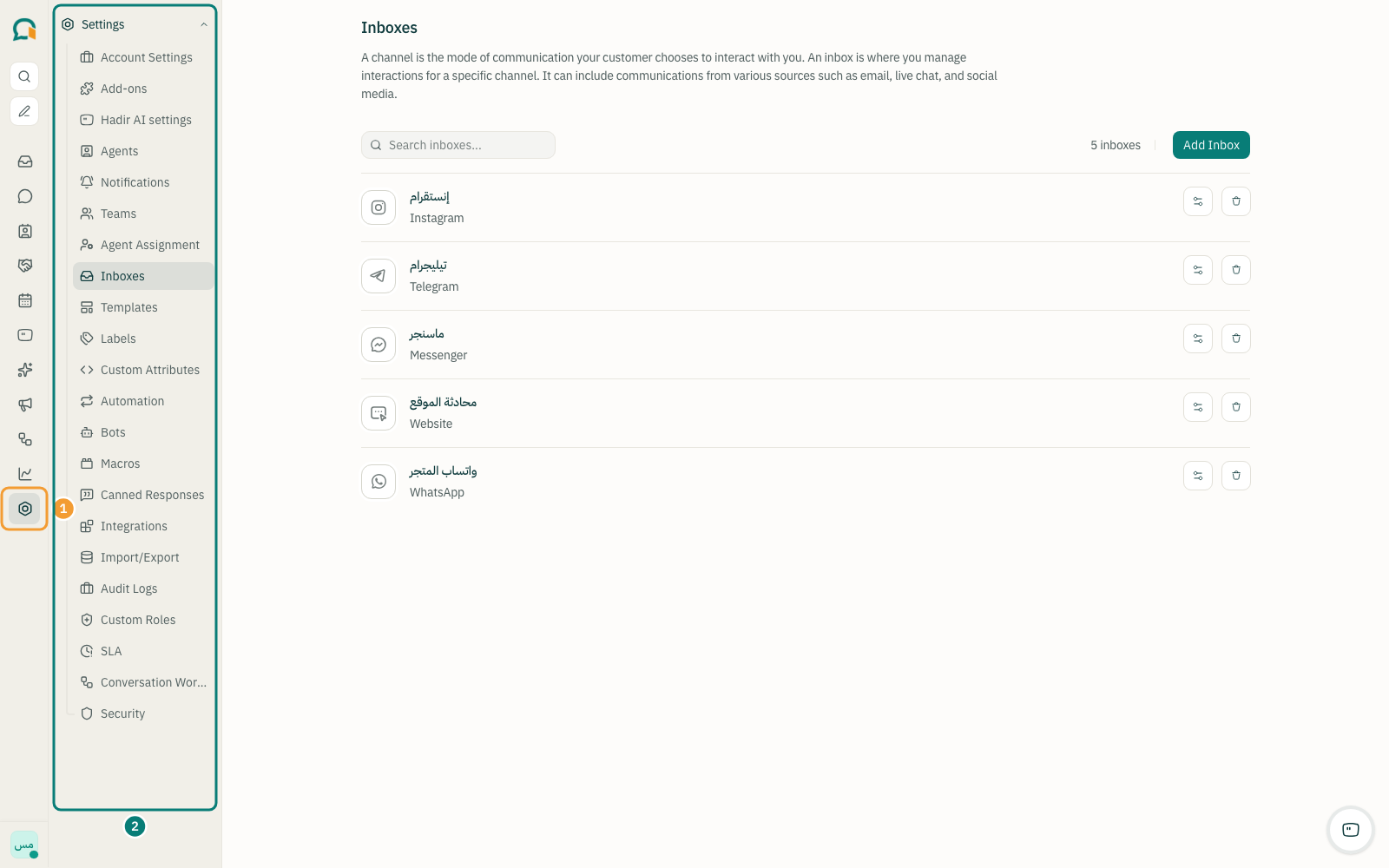
Only administrators see the full Settings menu. Agents see what their permissions allow.
Thanks for your feedback ✓
We got your note and will review the article with it in mind.