


Browse sections
WhatsApp templates
Create your templates at Meta, sync them with Hadir Chat, and send them from a conversation.
More than 24 hours after a customer's last message, Meta lets you message them only with a template it has approved. That is Meta's rule, and it applies to every official WhatsApp platform. A template is a ready-made message that can carry variables, such as the customer's name or an order number.
Create the template at Meta
- Create the template in Meta's WhatsApp Manager, choose its language and category, and submit it for approval.
- Wait for Meta's decision. A template cannot be sent from Hadir Chat until it is approved.
Note: templates are not created or edited inside Hadir Chat. Each template in the list has a Manage in Meta link that opens it at Meta.
Sync your templates
- In the inbox, open Settings, then Templates.
- Select Sync templates (1). The sync starts for all your WhatsApp channels and may take a couple of minutes.
- Search by name or content, or filter with All inboxes, All languages and All types.
- Select a template to see its Template preview as it appears in WhatsApp, with its status, category and language.
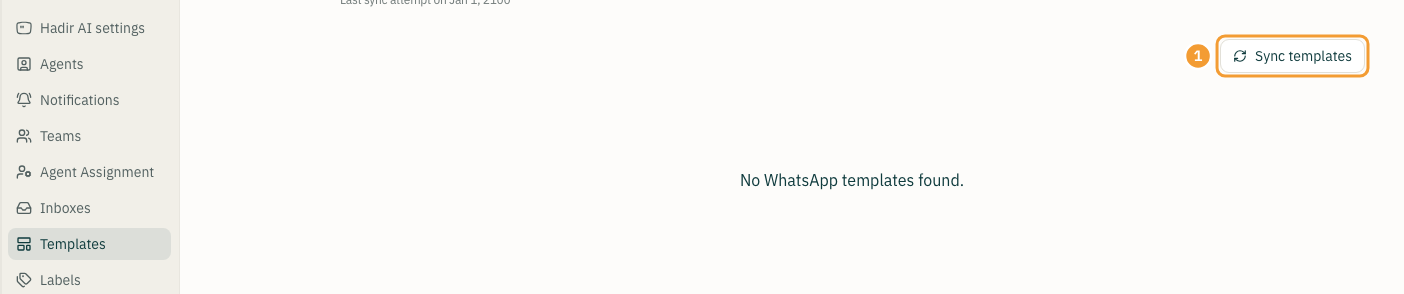
You can also sync a single channel: open its settings, then the Configuration tab, and select Sync Templates in the Sync Templates section.
Send a template from a conversation
- Open the customer's conversation on a WhatsApp channel.
- Select the WhatsApp templates button in the reply box. It appears when the channel has synced templates, and the list shows the ones that can be sent.
- Choose the template, or search for it.
- Fill in the Variables, such as the customer's name or the order number.
- Select Send Message.
When the customer replies, a new 24-hour window opens and you can answer with normal messages during it.
Thanks for your feedback ✓
We got your note and will review the article with it in mind.