


Browse sections
Add your team
Invite your team to the inbox and choose each person's role.
Add your team before you connect channels, so messages do not pile up on one person. Everyone you add gets an email to set a password and sign in to the inbox.
Add an agent
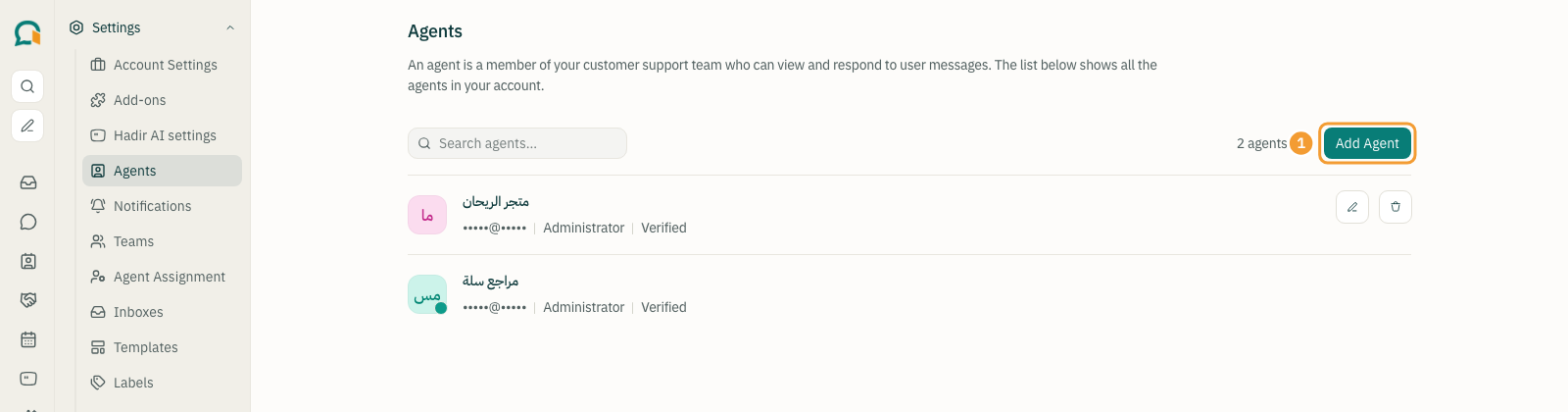
- In the inbox, open Settings, then Agents.
- Select Add Agent (1).
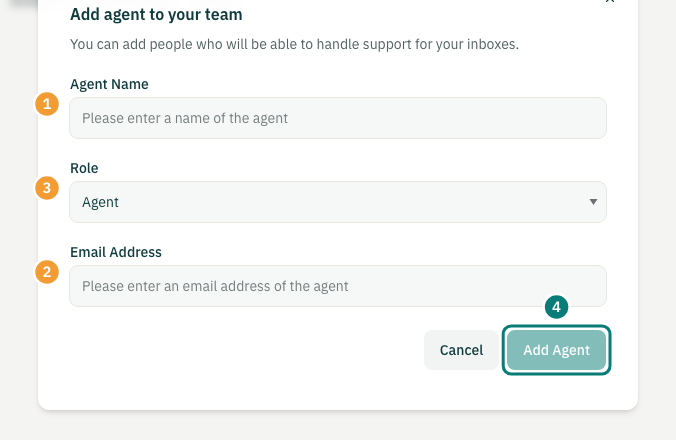
- Enter the Agent Name (1).
- Choose a Role (3): Administrator or Agent.
- Enter the Email Address (2) they will sign in with.
- Select Add Agent (4).
The new person shows as Verification Pending until they open the invitation, then as Verified.
Which role?
- Administrator: changes inbox settings and manages agents and channels.
- Agent: answers conversations in the channels they belong to, without access to settings.
Start with the smaller role; raising it later is easy. If your plan includes Custom Roles, you can give someone a specific set of permissions in between.
Add the agent to channels
- Open Settings, then Inboxes, and select the settings button next to the channel.
- Open the Collaborators tab, pick who answers this channel under Agents, then select Update.
Change someone's role
- On the Agents page, select the edit button next to their name.
- Choose the new Role, then select Edit Agent.
Note: the workspace owner can also invite agents from their account on hadir.chat: open Team, then Invite an agent. It is the same thing; the person is added to the same inbox.
Thanks for your feedback ✓
We got your note and will review the article with it in mind.