


Browse sections
Customise website chat
Change the chat's colour, logo, language and texts, and what visitors see when they open it.
On this page
The Appearance tab makes the chat window on your site look like your brand: colour, logo, light or dark mode, language and texts, and what a visitor sees when they open it. Every change shows in the preview beside the settings before you save.
Open the Appearance tab
- Open Settings, then Inboxes, and select the settings button next to your website channel.
- Open the Appearance tab (1).
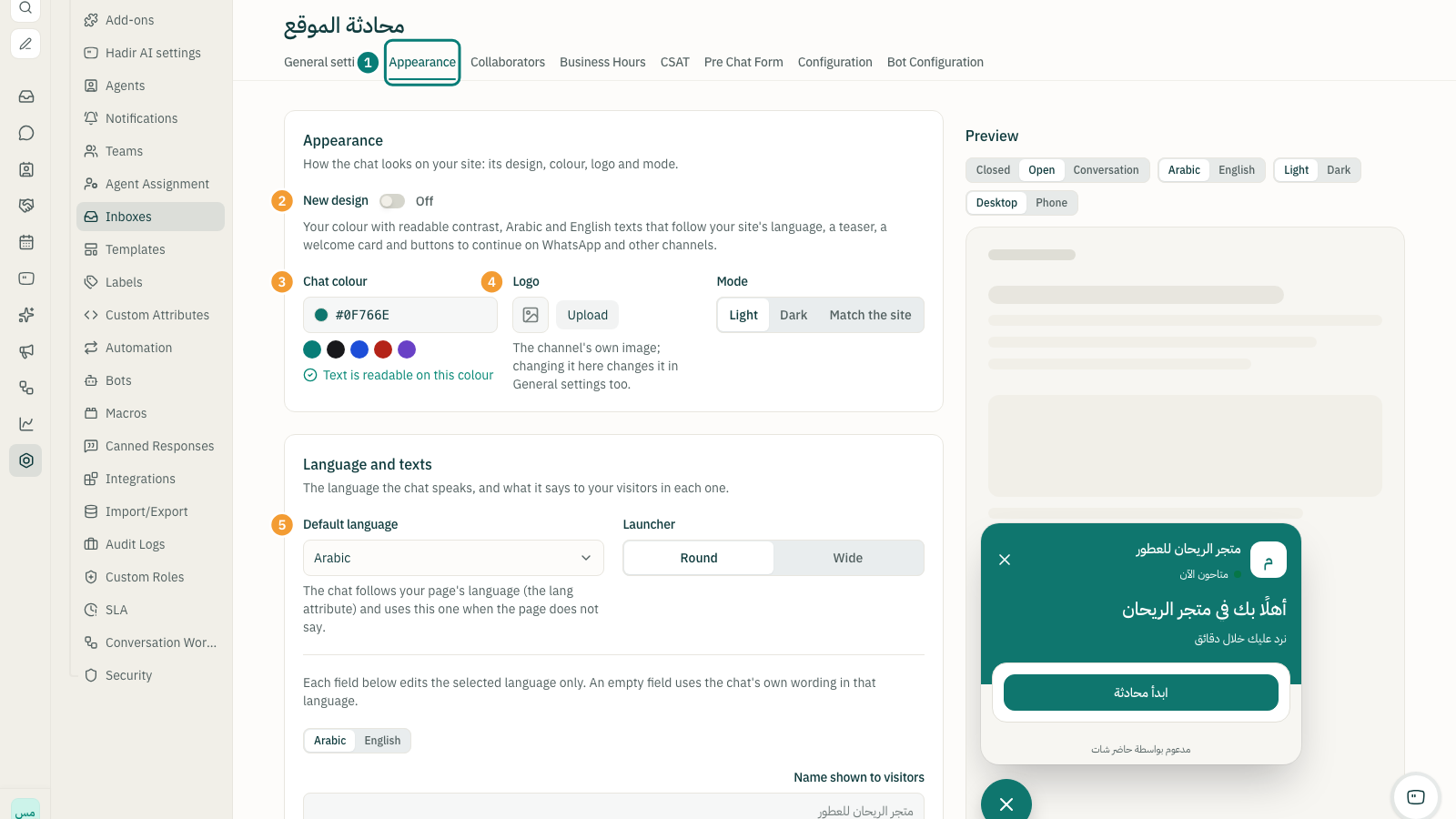
Appearance
- Turn on the New design (2) if you want it: your colour with readable contrast, Arabic and English texts that follow your site's language, a teaser, a welcome card and buttons to continue on WhatsApp and other channels.
- Pick a Chat colour (3) from the suggested colours, or enter your own as # and six characters. If text may be hard to read on it, Hadir Chat adjusts the text colour automatically.
- Select Upload next to Logo (4). The logo is the channel's own image, so changing it here changes it in General settings too.
- Choose a Mode: Light, Dark or Match the site.
Language and texts
- Choose the Default language (5). The chat follows your page's language (the
langattribute) and uses this one when the page does not say. - Choose the Launcher shape: Round or Wide.
- Pick the language whose texts you are editing (Arabic or English), then fill in Name shown to visitors and Greeting. An empty field uses the chat's own wording in that language.
Engage visitors and Home screen
The teaser, the welcome card and the buttons to other channels are part of the New design, so turn it on for your visitors to see them.
- Teaser bubble: a short invitation to chat, shown at most once a day per visitor, and never again once they close it or open the chat. Set when it appears with Show after, and choose whether it shows Also on phones.
- Quick links: up to 4 links, such as order tracking or your pricing page. Select Add a link, and drag links to reorder them.
- Continue on another channel: buttons that take the visitor to WhatsApp, Telegram, Messenger or Instagram, from the channels you have connected.
Save your changes
When you change anything, a bar says You have unsaved changes. Select Save for your visitors to see them, or Undo to drop them.
Note: use the preview buttons to see the window Closed or Open, in Arabic or English, light or dark, on Desktop or Phone, before you save.
Thanks for your feedback ✓
We got your note and will review the article with it in mind.