


Browse sections
Connect official WhatsApp with quick setup through Meta
Connect a WhatsApp Business number to your inbox through Meta's official API, in minutes.
Hadir Chat connects WhatsApp only through Meta's official WhatsApp Cloud API. Quick setup opens a Meta window where you sign in and pick your number; we then create the channel for you, with no manual configuration.
Before you start
- A Facebook account that manages your business on Meta. Admin access makes the setup smoother.
- A new number, or an existing number you use in the WhatsApp Business app.
- The number at hand, to receive the confirmation code Meta sends.
Connect the number
- In the inbox, open Settings, then Inboxes, and select Add Inbox.
- Choose WhatsApp (1).
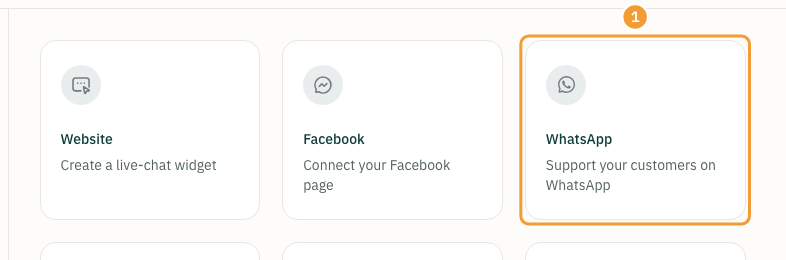
- Choose WhatsApp Cloud (Quick setup through Meta).
- On the Quick setup with Meta page, select Connect with WhatsApp Business (1).
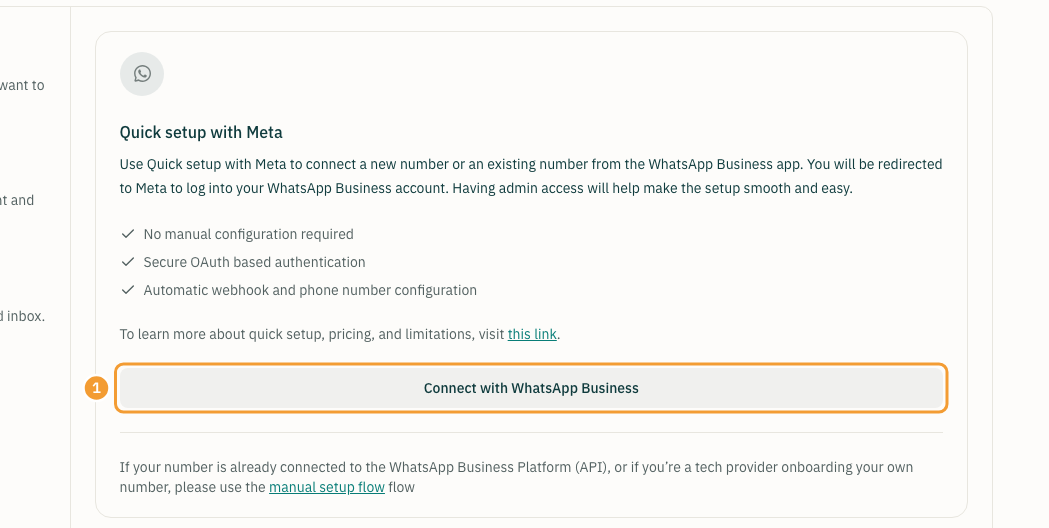
- A Meta window opens. Sign in with Facebook, choose or create your business, then pick the number and confirm it with the code you receive. Follow Meta's steps to the end and do not close the window early.
- When you finish, you are back in Hadir Chat and the channel is created. Pick the agents who answer this channel, then select Add agents.
- You see Your Inbox is ready!. Send a test message to the number from your phone; it arrives in the inbox.
If the Meta window does not open
- If you see “Couldn’t load the Meta sign-up window”, check your connection, turn off any ad or pop-up blocker, and try again.
- If you close the window before the end, you see “WhatsApp Signup was cancelled”. Start again from step 4.
- If your number is already connected to the WhatsApp Business Platform (API) somewhere else, use the manual setup flow link at the bottom of the same page.
Note: WhatsApp message fees are paid to Meta on your own card and never pass through us. Replies inside a customer-initiated conversation are service messages: the first 1,000 a month on each number carry no Meta charge; after that Meta charges for them at its own rate.
After connecting
More than 24 hours after a customer's last message, Meta accepts only an approved template, so prepare your templates early. Keep an eye on your number in the channel's Account health tab, and request the official badge from the Verification tab.
Thanks for your feedback ✓
We got your note and will review the article with it in mind.