


Browse sections
Customer orders in the conversation
See a customer's store orders beside the conversation, send an order's details, or pin it on top.
Once your store is connected, your team finds a customer's orders beside their conversation: order number, status, amount, items, payment and shipping, without opening your store dashboard. Hadir Chat finds the orders by the customer's email address or mobile number.
Open Store orders
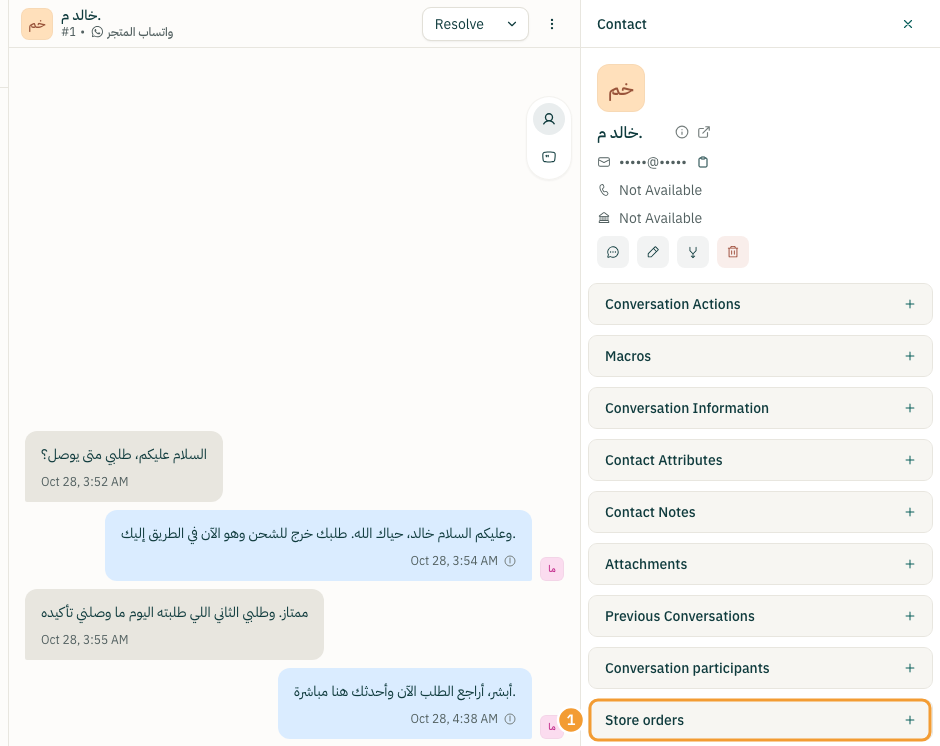
- Open the customer's conversation.
- Select the person icon in the small column beside the messages; the Contact panel opens.
- Select Store orders (1) to open the section.
What each order shows
- The order number, which opens the order in your store dashboard, and the total.
- The order status and date, the payment method, the number of items and the shipping status.
- The items themselves with their options, quantity and price, then the subtotal, shipping, discount and VAT where they apply.
What you can do
- Track the shipment: shows the shipment number and tracking link once it is with a courier; otherwise “Not handed to a courier yet.”
- Add to conversation as a note: adds the order's details as a private note that only your team sees.
- Send to customer: sends an order summary to the customer as a normal message in the conversation. You confirm first, and it cannot be unsent.
- Pin to conversation: pins the order at the top of the conversation, so whoever opens it later knows which order it is about. From the pinned bar you can Refresh from the store, Unpin or Open in the store.
If your role allows it, you also see Order actions to change an order's status, ship it or cancel it from the conversation.
If no orders show
- “No orders on Salla for this customer.”: check that the customer's email or mobile in Hadir Chat is the same as in your store.
- “No email or phone on this contact to look up orders with.”: add the email or mobile to the contact with the edit button at the top of the panel.
- “This workspace has more than one store…”: set this channel's store on the Salla page under Integrations.
- “Could not fetch the orders right now.”: the store did not answer. Try again shortly.
Note: the Store orders section appears only when your workspace has a connected store.
Thanks for your feedback ✓
We got your note and will review the article with it in mind.