


Browse sections
Marketer guide
Sign in to your marketer area, create and share your codes, follow your earnings, and request a withdrawal.
On this page
If you are a marketer in our affiliate programme, you have your own Marketer area. There you see your commission and how many customers you brought, create your codes and links, and ask for your earnings to be paid out.
Before you start
- We create your marketer account and send you the email and password. There is no self sign-up.
- To create your own codes you need a prefix that we set for you. If you see "You have no code prefix yet", write to us.
Sign in to the marketer area
- Open
https://hadir.chat/affiliate/login. - Enter your Email (1) and Password (2). Tick Keep me signed in if the device is yours.
- Select Sign in (3).
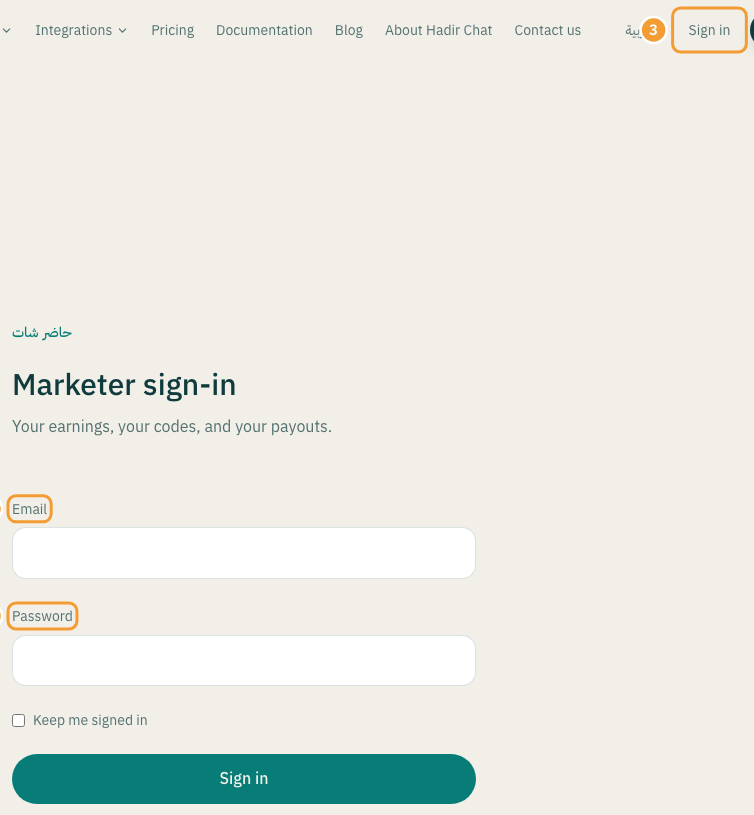
The first time, the Affiliate programme terms appear at the top of the page. Read them, tick I accept the terms, then select the button with the same name. Until you accept, you cannot create codes or request a withdrawal. If the terms change materially, you are asked to accept them again.
Read your numbers
At the top are your name and Your commission, then four cards:
- Customers brought: how many customers are recorded as yours.
- Earned: all your commission so far.
- Paid to you: what we have actually transferred.
- Available: what you can ask to withdraw now.
Your commission is a share of the customer's first invoice, before VAT; renewals do not earn commission. The example from the programme terms: a plan at 1,000, your total 30%, split as a 20% discount and 10% commission. The customer pays 800 and you earn 80.
Create a code and share it
Each code is a link. Share it anywhere: it works on every page of the site and is remembered for the visitor for 30 days.
- Under Your codes, type the Code (after your prefix) (1): Latin letters or digits, up to 20 characters. Your prefix is shown in front of it; do not type it again.
- If you like, add a Campaign name (2), such as where you will post the link.
- In Customer discount % (3), enter the discount your customer gets, or leave 0. The customer discount and your commission together cannot exceed your rate, and the discount applies once, to the first invoice.
- Select Create code (4). You see "Code … created."
Next to each code you see its discount, your commission, an example in money on our cheapest plan, and how many customers it brought. Select Copy link to copy the code's link.
- Deactivate stops the link; Activate brings it back.
- Delete only appears for a code that has brought nobody. A code that has brought customers cannot be deleted; deactivate it instead, and your earnings stay.
Note: a customer is recorded as yours the first time they arrive with your code, and stays yours; their code cannot be swapped later. Referring yourself does not count. The details are in the Affiliate programme terms.
Follow your earnings
- Earnings: the date and amount of each commission.
- Your customers: for each commission, the store name, the plan, what was paid and what you earned. We never show you the customer's email or phone.
- Account history: every movement on your balance: Commission, Commission cancelled, Paid commission taken back, Transfer, Adjustment.
A commission is held for a period before it can be withdrawn, because the customer has a right to a refund. If a customer is refunded, the commission is cancelled; if it was already paid to you, your balance goes negative and is settled from your next commissions.
Request a withdrawal
- Under Payout details at the bottom of the page, choose How to pay you: Bank account or Wallet.
- Enter the Account holder name, then the Bank name and IBAN, or the Wallet number or handle, and select Save.
- Under Your money, enter the Amount, add a Note if you like, and select Request a withdrawal.
You see "Request received. We will be in touch." and the request appears under Payouts as Requested. Nothing is sent automatically: we review the request, transfer by bank, and mark it Paid here. You get an email when it is approved and when it is sent. If it is declined, your balance is unchanged and you can ask again.
- One request at a time: wait for a decision before asking again.
- There is a minimum withdrawal, and you cannot ask for more than is available.
Thanks for your feedback ✓
We got your note and will review the article with it in mind.