


Browse sections
Archiving, deleting and reconnecting inboxes
Stop an inbox you no longer use by archiving it and keeping its conversations, move its conversations to another inbox, delete it safely, and reconnect it without losing anything.
On this page
When you stop using an inbox, you do not need to delete it. You can archive it and keep its conversations as they are, move its conversations to another inbox, or reconnect it if its connection broke. Deleting is the last option, and even then you have 30 days to restore it.
All of this is in Settings then Inboxes: with the buttons next to each inbox, or from the Inbox safety tab in its settings (1).
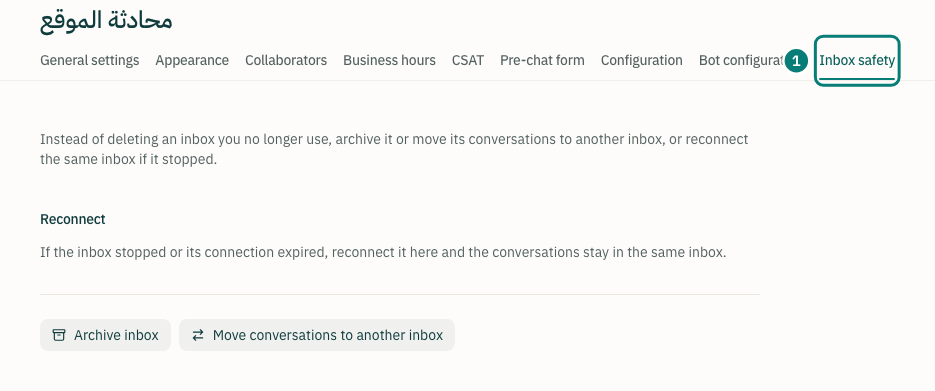
Archive an inbox instead of deleting it
This needs the Administrator role, or being the account owner.
- Click Archive inbox next to the inbox.
- Read what will happen, and which campaigns, automations and journeys will be paused because they use this inbox (1).
- Click Archive.
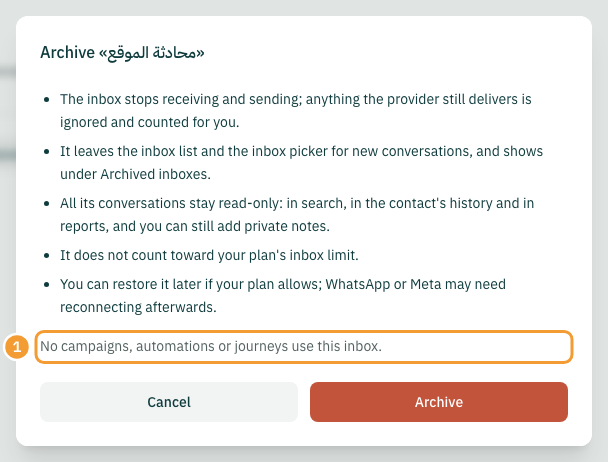
An archived inbox:
- Neither receives nor sends. If the provider keeps delivering messages to it, we ignore them and show you how many.
- Leaves the inbox list and the inbox picker for new conversations, and shows under Archived inboxes.
- Keeps its conversations read-only: you find them in search, in the contact's history and in reports. The reply box does not show in them.
- Does not count toward your plan's inbox limit, so you can connect another inbox in its place.
Campaigns, automations, journeys, store notifications and bot flows that use only this inbox are paused. Those that use it along with other inboxes keep running on the others, and we list them for you.
Restore an archived inbox
- Under Archived inboxes, click Restore inbox.
- If your plan is full we tell you, so archive another inbox or add an inbox to your plan first.
What was paused when you archived does not come back on its own, so no messages go out that you did not expect. We list it and you turn it back on yourself. WhatsApp, Messenger and Instagram inboxes may need Reconnect after a restore.
Note: the archive inbox of conversations imported from Karzoun cannot be restored, because it was never a connected inbox. You can move its conversations to another inbox.
Move conversations to another inbox
- Click Move conversations to another inbox next to the inbox.
- Pick the new inbox under To inbox (1). Inboxes of the same type and archived inboxes are listed.
- Pick All conversations, Open only or In a date range (2).
- Read the warnings, then click Start moving.
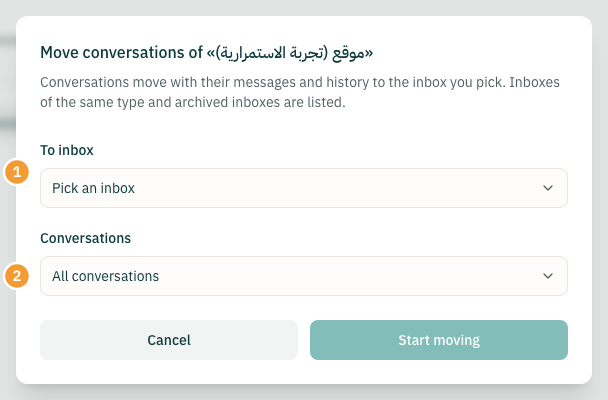
The move runs in the background and you see its progress. Conversations move with their messages and attachments, and each contact is linked to the new inbox.
Be careful when the new inbox is a different number or account: future replies go out from it, and the customer sees a different sender. On WhatsApp the new inbox's rules apply: the 24-hour window and its approved templates. On Messenger, Instagram and TikTok, a customer who never wrote to the new page does not get your reply until they write to it.
You can Undo the move within 24 hours, unless new messages arrived in the moved conversations.
Delete an inbox safely
Only the account owner can delete an inbox.
- Click the delete button next to the inbox.
- Check what will be deleted for good: the number of conversations, messages and attachments and their size (1). Contacts are never deleted.
- If you only want to stop the inbox, pick Archive inbox or Move conversations from the same dialog.
- Type the inbox name exactly, then click Move to the Trash.
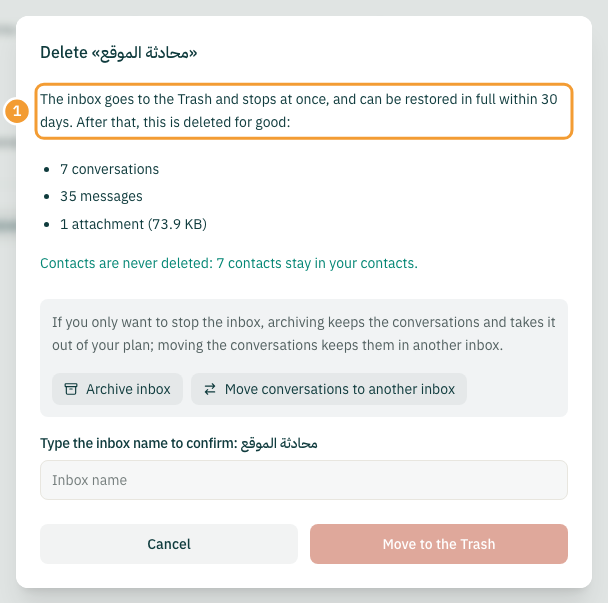
The inbox stops at once and goes to the Trash at the bottom of the inboxes page, and you get an email with the date of its permanent deletion. Within 30 days the owner or an administrator can restore it whole. After 30 days it is deleted for good with its conversations, and you get an email when it is done.
Reconnect an inbox without deleting it
If you see Reconnect in an inbox's settings, its connection broke or expired. Reconnect it and the conversations stay in the same inbox.
- WhatsApp: click Reconnect and finish Meta's steps. If you pick a different number, the existing conversations continue from the new number.
- Messenger, Instagram, TikTok and email through Google or Microsoft: click Reconnect and sign in with the same account.
- Telegram: in the Inbox safety tab, paste a new token from BotFather under Change the bot token. If the token belongs to another bot we warn you, because existing conversations do not continue with a bot customers never started a chat with.
- Email with a password: update the login details in the inbox settings.
Note: an archived inbox or one in the Trash cannot be reconnected. Restore it first. If you try to connect a number or account that is still tied to an archived or deleted inbox, we tell you so you can restore it instead of connecting it again.
Thanks for your feedback ✓
We got your note and will review the article with it in mind.