


Browse sections
Moving from Karzoun to Hadir Chat
Bring your Karzoun conversations and contacts over as they were, without anything reaching your customers, with undo for 7 days.
On this page
If you use Karzoun, you can move your conversation history and contacts to Hadir Chat in four steps. The import is completely quiet: no message is sent to your customers, your team gets no notifications, and automations and Hadir AI do not run on the imported conversations.
This needs the Owner or Administrator role.
Export your data from Karzoun
From your Karzoun dashboard, export two files:
- The conversations file as JSON (preferred, because it carries the status, agent and tags), or the messages CSV if that is what you have.
- The contacts file as CSV.
Upload at least one file: the conversations file alone, the contacts file alone, or both. Both give the best result, because the contacts file carries names, emails and tags.
Step 1: upload the files and review the summary
- Open Settings, then Import and export, and click Import from Karzoun.
- Choose the Conversations file, the Contacts file, or both (1), then click Upload and read the files. The button works as soon as you have chosen at least one file and every file you chose is valid.
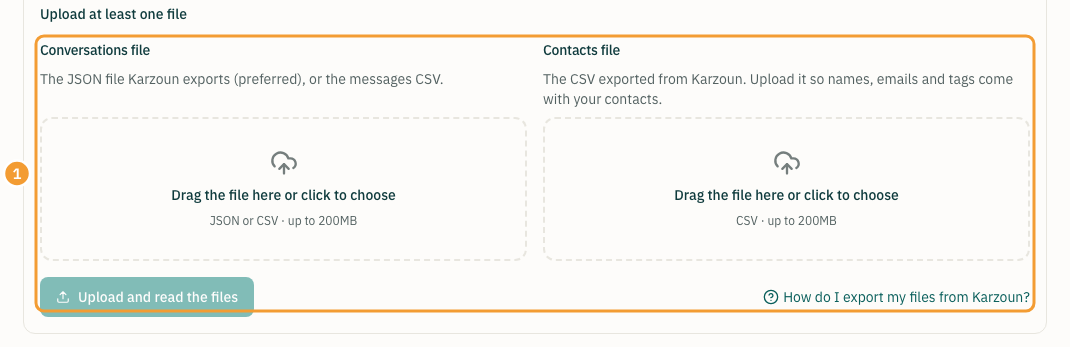
Hadir Chat reads both files and shows What the files hold: how many contacts, conversations, messages, channels, agents and tags, and the dates they cover. Nothing has been written to your account yet. If there are reading errors, download them with Download the errors (CSV).
If you upload only the contacts file, the summary shows the contacts and their tags only: no conversations, messages, channels or agents.

While reading, mobile numbers are converted to international format (such as +966500000001), extra spaces are removed from names, and the values Karzoun puts instead of an empty field, such as "-" and "0000000000", are left empty.
Step 2: contacts
Click Next: contacts. Each contact is matched by mobile number in your account:
- Existing: merged by filling empty fields only. Nothing already there changes.
- New: added.
- No mobile number or email: skipped, with the reason in the final report.
The fields move like this: name and email as they are; the Karzoun state as a label on the contact («عميل-محتمل» for a lead, «عميل» for a customer); "not subscribed" to marketing is recorded in the opt-out list; code, pronoun, date of birth and description as custom attributes. The contacts' Karzoun tags are not added in this step: you see them in the matching step, choose what each one becomes, and they are added during the import.

Note: contacts count toward your plan's contacts limit. Once you reach it, the rest are skipped and the report says why.
Step 3: matching
Review what we suggest and change anything you want:
- Channels: each Karzoun channel is matched to a Hadir Chat inbox by name, in Arabic or English (such as «واتساب - تاز بلس» and "Taz Plus"). If there is no matching inbox, choose Create an archive inbox: a read-only "Karzoun - name (archive)" inbox that sends nothing and does not count toward your plan's inboxes.
- Agents: choose the matching Hadir Chat agent, or None and their messages show their original name.
- Tags: one list for the conversations' tags and the contacts' tags together, each with how many conversations and contacts carry it. Each tag is compared with your existing labels after turning spaces into "-" (so «عروض العيد» becomes «عروض-العيد»). A match is used; for anything else choose Create a new label or Ignore. A tag you ignore is added to no conversation and no contact.
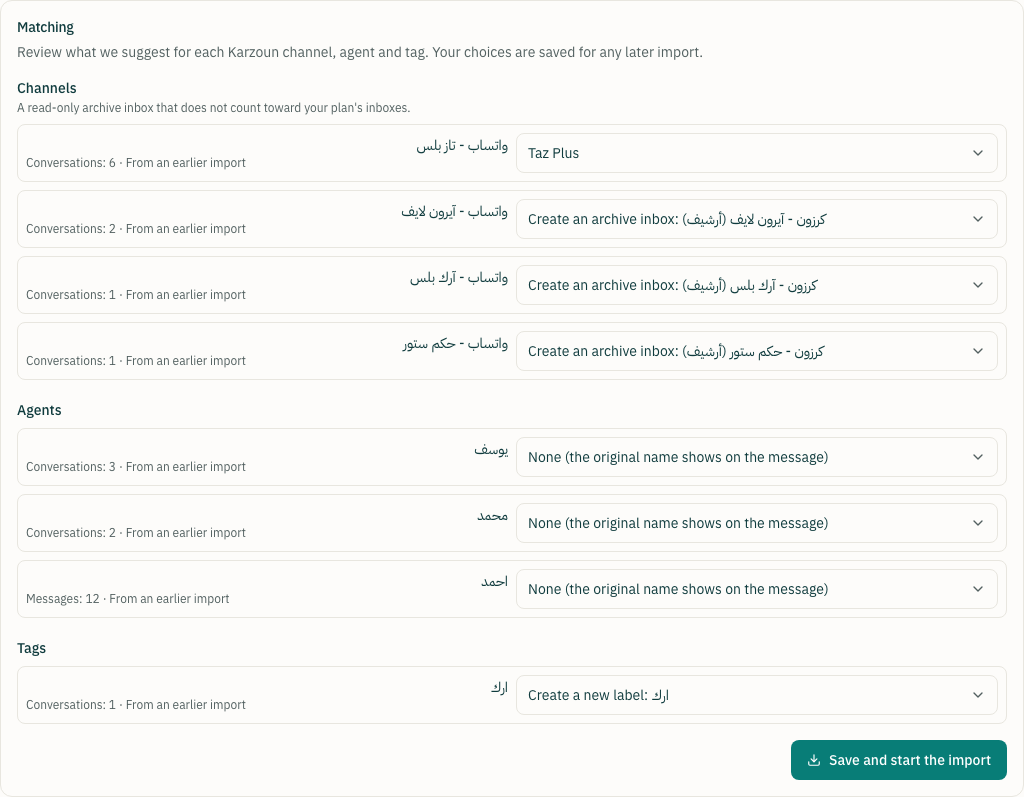
If you uploaded only the contacts file, this step shows no channels or agents, only the tags.
Your choices are saved, so any later import starts from them.
Step 4: import
Click Save and start the import. The import runs in the background and shows its progress; you can leave the page and come back.
The contacts' tags are added in this step, following the matching you chose. If you uploaded only the contacts file, no conversations are imported: the tags are added to the contacts and the import finishes, with the report and Undo still available.
- Each conversation arrives with its original dates, resolved, labelled مستوردة-من-كرزون plus its own tags, in the chosen inbox and assigned to the chosen agent.
- Customer messages are incoming, agent messages outgoing under the agent's name, bot messages outgoing as the bot, and Karzoun events (an agent joining, a status change, an assignment) become activity lines.
- A button press without text shows "[Pressed a button]", and an attachment the export carries no link for shows "[Attachment not available in the exported file]".
- If the contact is private or secret in your account, its imported conversations get the same privacy.
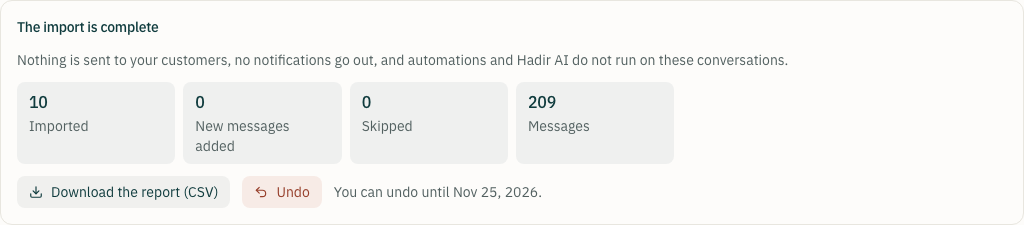
At the end, download the report (CSV): what was imported, what got new messages, what was skipped and why.
If you upload the file again
Nothing is duplicated. A conversation imported before is not imported again, but any new messages are added to it. So if you export a newer file from Karzoun and upload it, only the messages you did not have arrive.
Undo
Within 7 days of the import finishing, click Undo. The conversations, messages and contacts this import added are deleted, the labels it added to contacts are removed, and the labels it created are deleted once nothing uses them. Contacts that existed before it keep their original data; only what the import added to them is removed.
Thanks for your feedback ✓
We got your note and will review the article with it in mind.